Step 2: Tour the editor
A tour of the editor, naming each part of the screen. Start Thingstudio if it isn't running: see step 1.
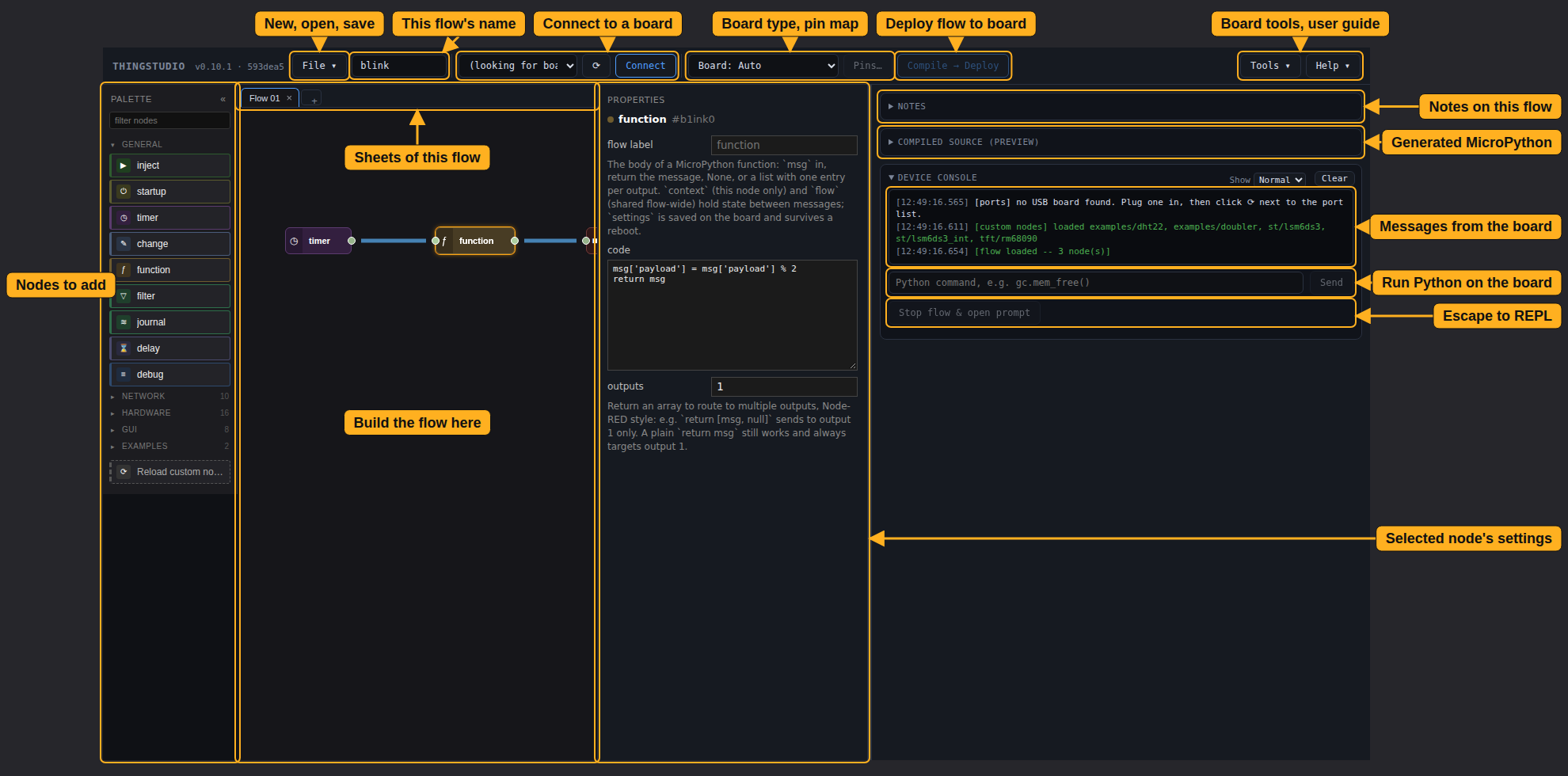
Toolbar
The toolbar runs left to right in the order you work: the flow, the board, then deploy.
- New, open, save: the File menu.
- This flow's name: saved with the flow. The board reports it, so you can tell which flow it's running.
- Connect to a board: pick the board's port from the list, then click Connect. ⟳ looks for boards again.
- Board type, pin map: the Board menu sets the board the flow is for; Auto uses the connected board. Pins… opens a page listing that board's pins.
- Deploy flow to board: Compile → Deploy turns the flow into MicroPython and sends it to the board.
- Board tools, user guide: the Tools menu has board jobs, such as installing the runtime or removing a flow. The Help menu opens this user guide.
Palette
Nodes to add: every node, in groups such as General, Network and Hardware. Drag a node onto the canvas, or click it. Type in the filter box to find one. Custom nodes appear in the group they name, or in General.
Click a group's name to fold or open it. Only General starts open. The editor remembers which groups you opened, in this browser. While you type in the filter box, every group with a match opens.
Canvas
The canvas is where you build the flow. The tabs above it, Sheets of this flow, spread one flow across several sheets.
The canvas works like this:
- Wire two nodes: drag from one node's output, on its right, to another node's input, on its left.
- Select: click a node or a wire. Ctrl-click to select several nodes.
- Delete: select, then press Delete or Backspace. Deleting a node removes its wires too.
The editor refuses a wire between ports whose types don't fit. See Wiring.
Properties, notes and console
The right-hand side holds the selected node's settings and what the board sends back:
- Selected node's settings: the properties panel.
- Notes on this flow: the Notes panel, free text saved with the flow.
- Generated MicroPython: the Compiled source panel. Click it to open it.
- Messages from the board: the Device console, with messages from Thingstudio and the board, including your flow's output. Its Show menu sets how much it shows: Normal for your flow's output, results and errors, Info to add routine reports such as memory, Debug for everything.
- Run Python on the board: type a line of Python and click Send. It runs on the board alongside the flow. See Commands and the Python prompt.
- Escape to REPL: Stop flow & open prompt stops the flow and gives you MicroPython's own
>>>prompt. Restart Thingstudio starts the flow again.
To make the notes, compiled source and console column wider or narrower, drag its left edge. Double-click the edge to reset it.
Editor in depth covers wire types, node labels, presets, config nodes and node status.
Next
Step 3: install MicroPython on your board.